
How incogno works.
incogno listens to your meeting, can read your screen, and starts answering within seconds. It is a native overlay for Mac and Windows, built for developers.
What happens during a call.
incogno runs on your computer, alongside Zoom, Google Meet, Microsoft Teams, Webex and Slack Huddles, with no plugin to set up.
It listens to the call
incogno hears only the audio your computer plays, so the live transcript covers the other people in the call, not your voice. No bot joins, and nothing appears in the participant list.
It reads your screen
Screen context is on by default: incogno reads the text on your screen and sends it with your questions. On Pro and the trial, and when you use "What's on my screen", it can add a screenshot.
It answers when you need it
When it hears a question, incogno shows a small prompt, and one keystroke answers it in a small overlay that is designed to stay out of screen share.
One keystroke when you need it.
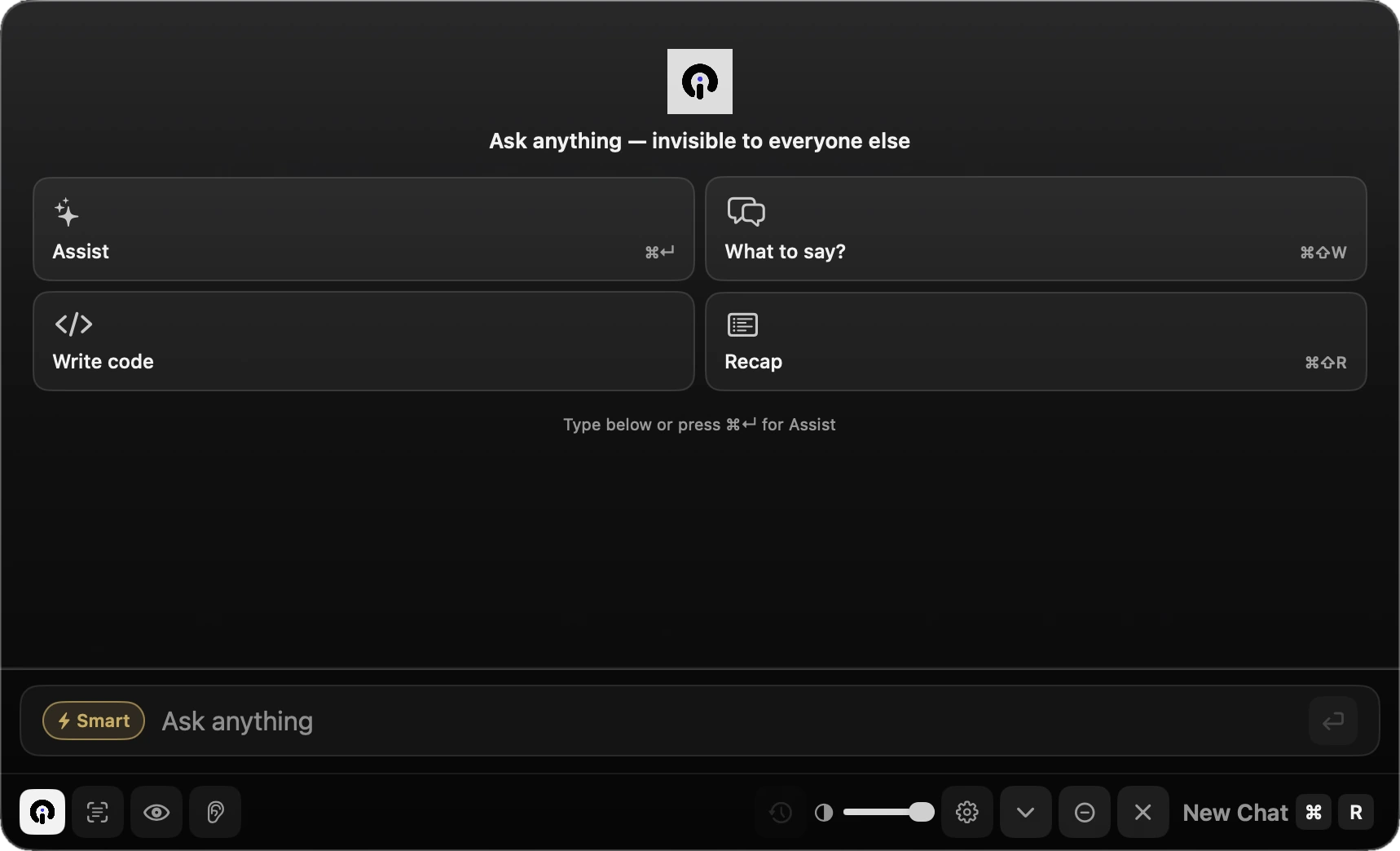
In a design review, an incident call or a client demo, incogno waits for you: when it hears a question it shows a small prompt, and one keystroke answers it. Its home screen has four actions, and a box to type anything else.
- Assist
- ⌘↵
- Answers the question that was just asked, using the live transcript and your screen.
- What to say?
- ⌘⇧W
- Suggests what to say next, based on the conversation so far.
- Write code
- Start a code request, say what you need, and incogno writes the code with an explanation.
- Recap
- ⌘⇧R
- Sums up what the others just said, so you can rejoin a thread you lost.
Everything in one small window.
A native overlay for Mac and Windows, not a browser extension and not a bot. It's designed to stay out of screen share.
AI Assist
Ask anything. incogno reads the live transcript and your screen, and starts answering within seconds.
Live transcript
What the others say is transcribed in real time over an encrypted connection. Our servers don't keep the audio.
Screen vision
incogno reads the text on your screen for better answers on code, slides, error messages and docs. On Pro and the trial, and when you use "What's on my screen", it can add a screenshot.
Coding assist
Reads the problem on your screen and writes code, with a short explanation.
Knowledge base
Add your notes or project docs. incogno brings up the right part when a question comes up.
Recap
Catch up on what the others just said, so you can rejoin a thread you lost.
What leaves your computer, and what never does.
A copilot that listens to your calls has to earn its place. This is what happens to your data during a call.
- Your microphone
- Never captured. incogno hears only the audio your computer plays, so the transcript covers the other people in the call, not your voice.
- Meeting audio
- Streamed over an encrypted connection, through incogno's servers, to our speech-to-text providers for live transcription. Our servers don't keep it. With the optional Deep analysis, a meeting's audio is uploaded once after the call.
- Transcripts
- Processed as the call happens and not kept on our servers. incogno doesn't train AI models on them. Saving an AI summary keeps the summary; the optional Deep analysis keeps that meeting's transcript.
- Your questions
- Sent encrypted to incogno's API, which uses our AI providers to write the answer. On Pro and the trial, incogno can prepare an answer to a question it hears before you ask.
- Your screen
- Screen context is on by default: incogno reads the text on your screen and sends it with your questions. On Pro and the trial, and when you use "What's on my screen", it can add a screenshot.
- The call itself
- No bot joins and nothing appears in the participant list. Nobody else has to install anything.
Recording and transcription rules vary by workplace and by country, and some places require everyone's consent. Tell the people in your meeting, and get their consent where required. More on the Security page and in the list of subprocessors.
Try it on your next call.
Every Pro feature for your first 30 minutes with the app running or 30K AI tokens, with no credit card. For Macs with Apple Silicon on macOS 13 or later, and Intel or AMD PCs on Windows 10 (version 2004 or later) or Windows 11.